.svg)
→ Merge work and personal calendars in Morgen if you are double-booking or missing commitments: connect Google Calendar, Outlook, iCloud, and Fastmail, and view every meeting, routine, and deadline on one timeline
→ Create a Calendar Propagation workflow if you need to keep personal time private: mirror busy events across calendars as blockers so others see when you are unavailable without seeing why
→ Create Booking Pages and share Scheduling Links if others need access to your availability for events: let clients, teammates, or family book directly into open slots
→ Use the AI Planner to fit work into your real schedule if you currently plan around calendar gaps manually: it suggests task blocks around existing meetings and routines, and only schedules after you approve
Do you need to sync work and personal calendars in one place? Morgen merges every work meeting, personal commitment, and shared family plans into a single unified view.
With Morgen, you can stop double-booking, stop context switching, and start planning from one place instead. Let’s dive into how to sync, manage, and protect both calendars in Morgen.
How to Sync Work and Personal Calendars
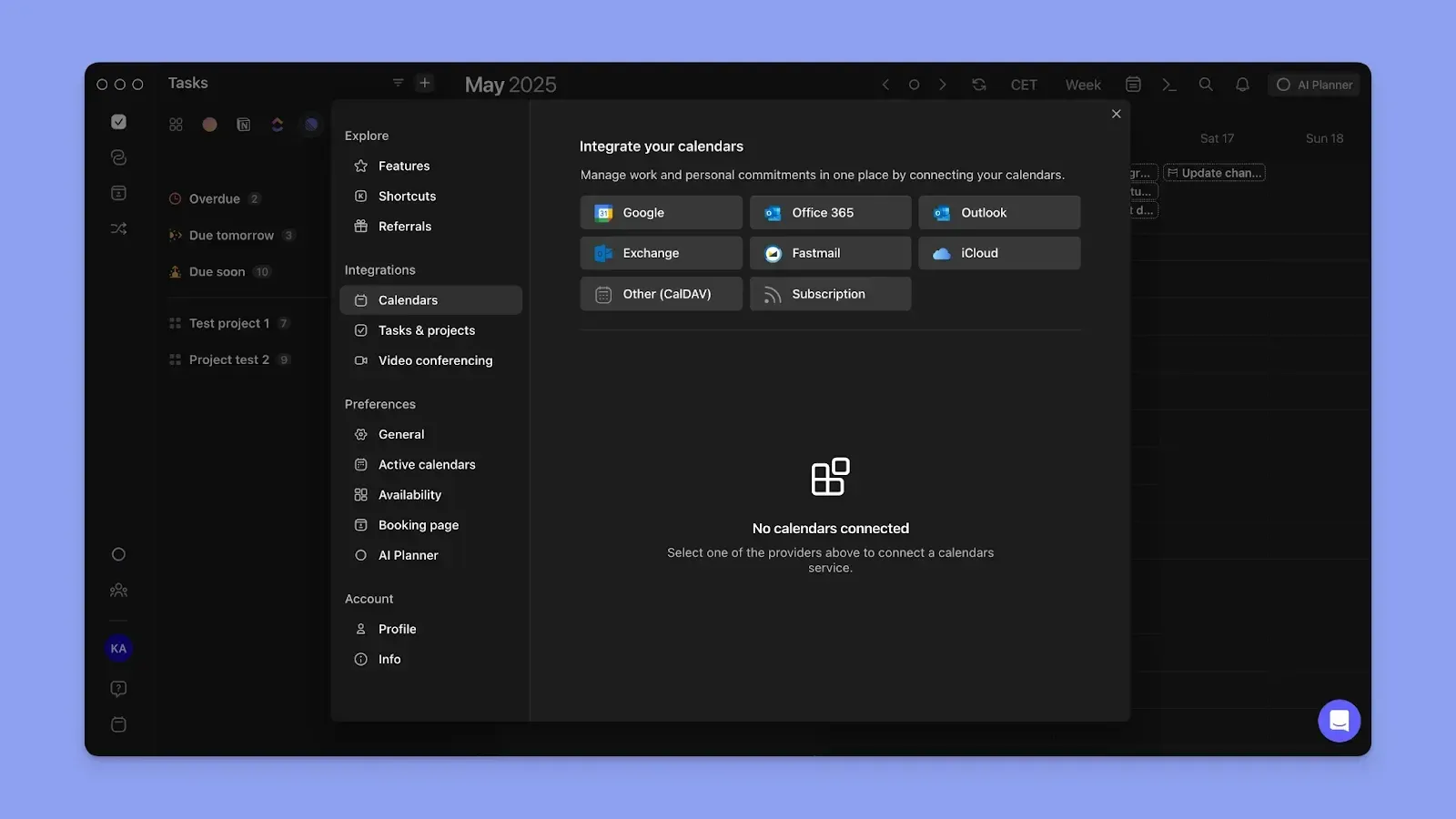
Here’s how merging creates calendars that work for busy professionals:
- Merged calendar view for time management: You’ll see all meetings, routines, deadlines, recurring commitments, and personal plans in one place
- Reduce the mental load of managing separate calendars: You get one clear view of your commitments instead of context switching to view schedules
- Improve relationships and performance: A unified view prevents overcommitting and helps you show up fully for both work and life commitments
- Calendar integration features for work-life balance: Keep calendars synced across all your devices, plus propagation to share schedules with other calendars
- Expert insights: color-coding by calendar type: Separate work, client, personal calendars to read time distribution across your week at a glance and catch any overload before it compounds
Merged Calendar View for Time Management
Connect Google, Outlook, iCloud, Fastmail, and more calendars into one unified view in Morgen. From there, you can:
See Your Full Availability Without Switching Apps
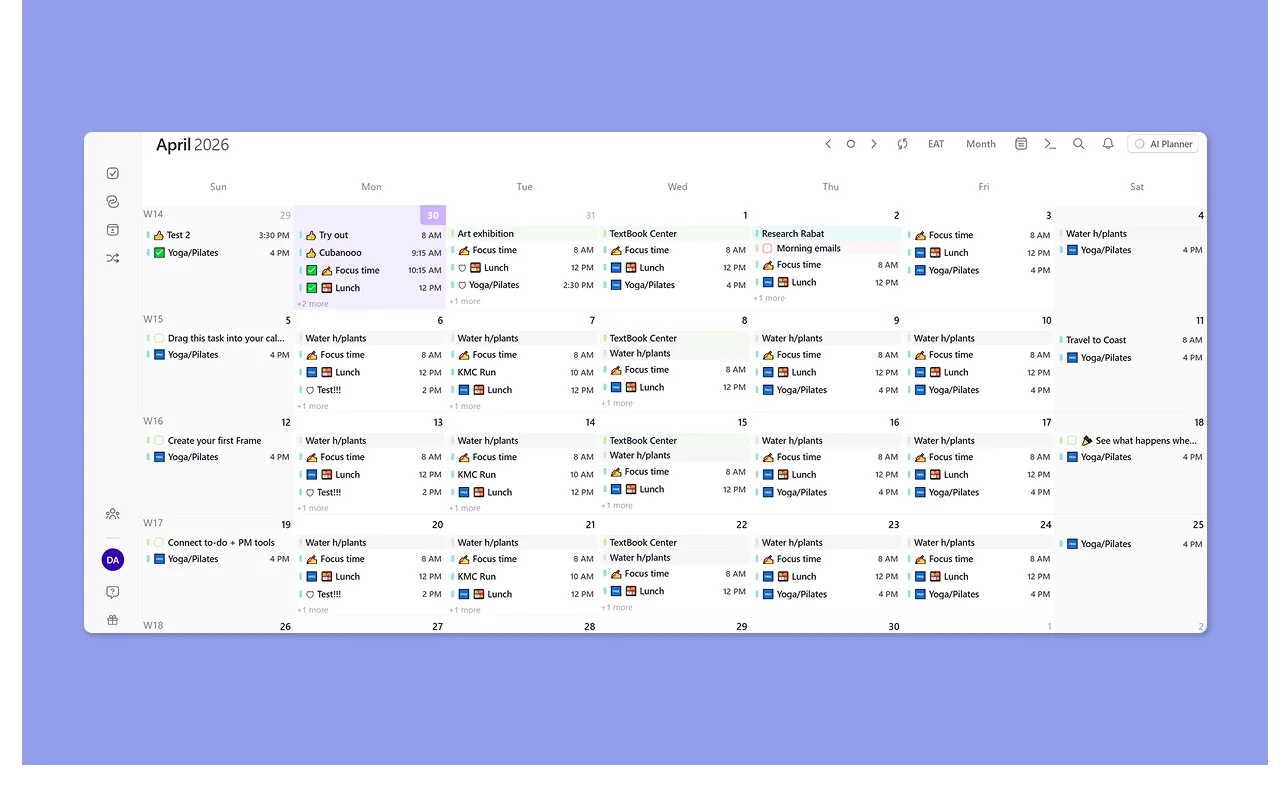
Sync your calendars, and Morgen displays all appointments in one view: from work appointments, routines on a personal calendar, to travel plans or shared calendar events.
Create Custom Notifications on Desktop and Mobile

Morgen sends alerts directly to your desktop and mobile devices. Customize how and when you're notified with:
- Custom reminders by calendar: Set different alert timing for work and personal events
- Multiple alerts per event: Stack reminders on the same event, such as a one-day heads-up plus a 10-minute (before) prompt
Use AI-Powered Time Blocking That Respects Availability and Priorities
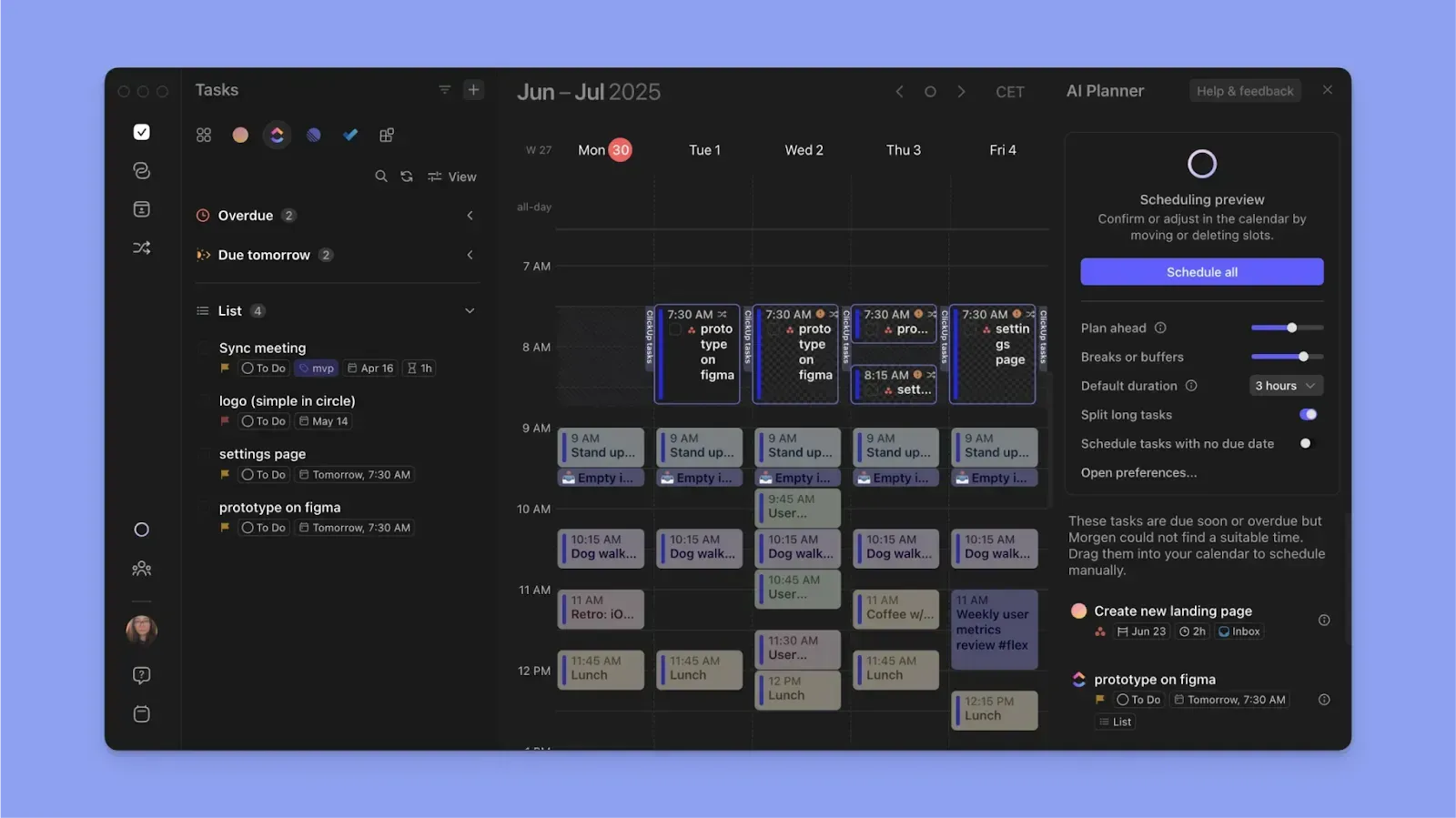
Once all appointments are visible in Morgen, add tasks from your task tools or create new ones directly in the app. Then use the AI Planner to fit work into your actual schedule. It builds suggestions around:
- Real availability: The AI only suggests time slots that are open across all connected calendars
- Task priorities: Higher-priority tasks get placed before lower-priority ones within your available time
- Existing commitments: Meetings, routines, and blocked time are never overwritten
Reduce the Mental Load of Managing Separate Calendars
Every time you stop working to check another calendar or app, you break focus. Research from the University of California suggests it can take 8 to 25 minutes to fully regain concentration after an interruption. You need to:
Stop Cross-Referencing Multiple Apps
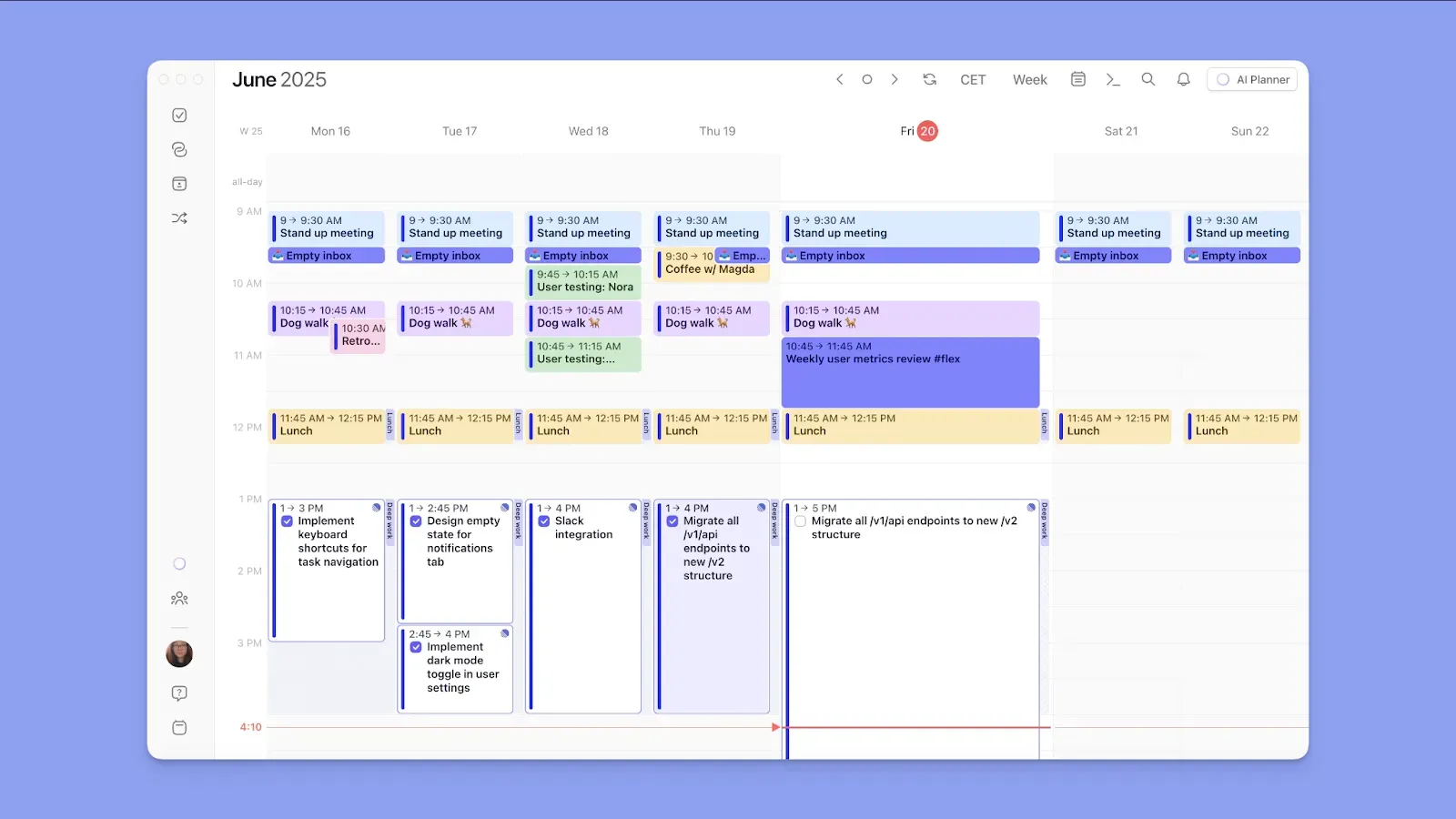
With everything visible in your Morgen view, it becomes easier to make scheduling decisions without checking multiple apps. This helps you:
- Spend less time mentally reconciling schedules
- Spot overlaps before committing
- Respond faster to new invitations
Use Morgen’s free schedule builder online to drag and drop tasks into any calendar app, too.
Reduce Decision Fatigue When Planning
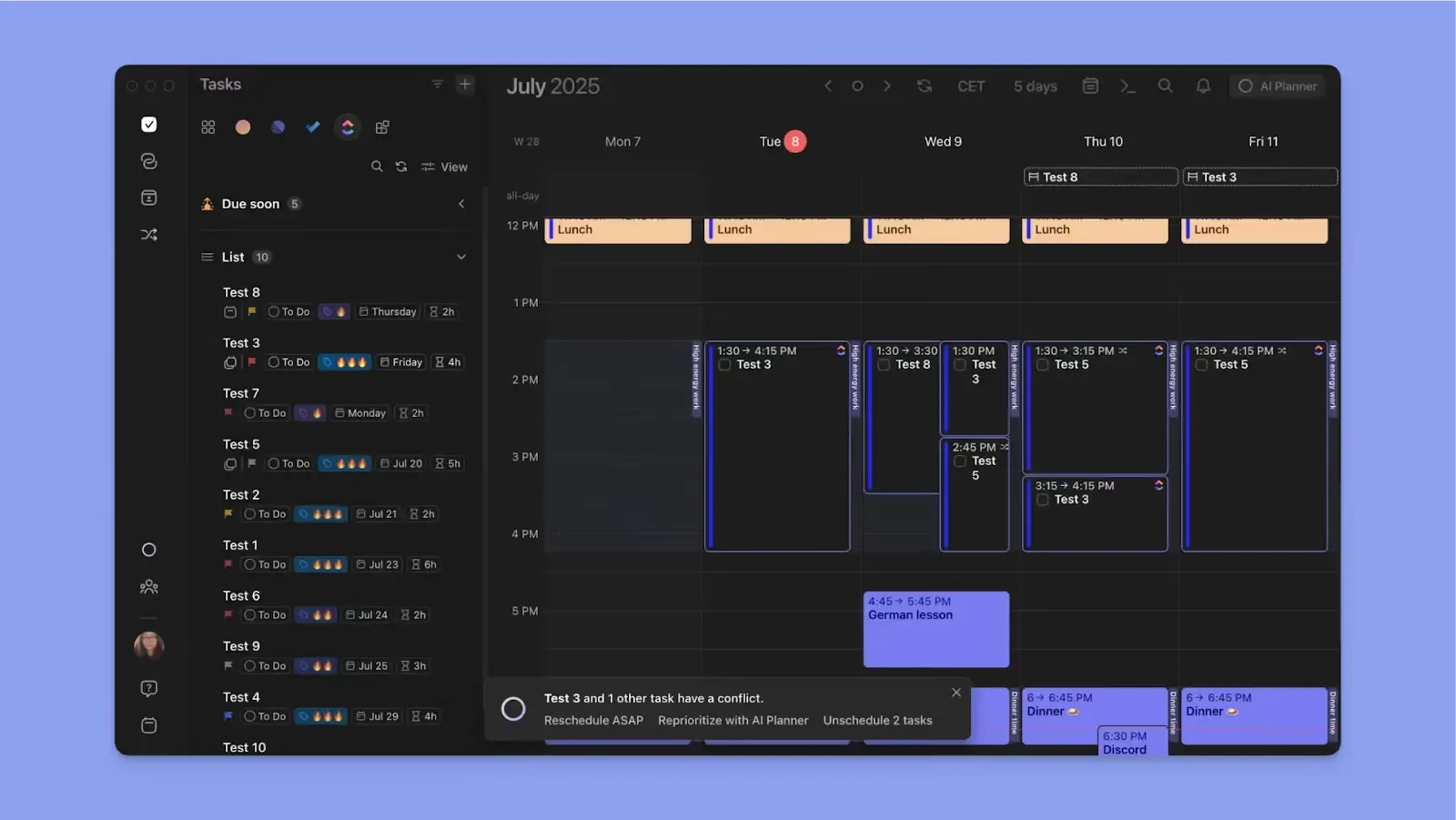
Planning manually means constantly weighing deadlines, meetings, routines, and open time. With Morgen, you get:
- Less manual checking: Your full schedule is already visible, so you're not piecing together availability from memory
- Faster decisions: Context is always on screen, so accepting or declining a new commitment takes seconds
- Fewer conflicts: The AI flags clashes before they land on your calendar
Improve Relationships and Performance
Missed family time, overlapping meetings, and late arrivals often start with fragmented calendars.
Here are Morgen’s three ways to share availability with the right people, without exposing details they don't need to see.
For solopreneurs and busy professionals, this also means clients always see accurate availability without manual back-and-forth.
Create a Booking Page for Every Type of Meeting

Booking Pages let you set up dedicated, always-on pages for different meeting types, so people book directly into the right slot without any back-and-forth.
Each page carries its own availability rules, duration, and buffer time. Examples of booking pages to create:
- Client consultation: during business hours only
- Team 1:1: recurring meetings, linked to your work calendar only
- Personal check-in: friends or family, linked to your personal calendar, separate availability window
- Office hours: open slots, first-come-first-served, capped per day
Share Meeting Links for One-Off Availability

Scheduling Links and Open Invites are for one-off situations where a full Booking Page isn't necessary. Use them when:
- You need a fast link for a specific call: Share it, the other person picks a slot, and Morgen blocks it across all your connected calendars instantly
- You want a narrow availability window: Offer only the slots you're willing to give without exposing your full calendar
- The meeting is time-sensitive: Generate a link on the spot without building out a dedicated page
Protect Your Privacy While Sharing Availability

Syncing work and personal calendars in Morgen doesn't mean everyone sees everything. Visibility is controlled at every level:
- With your Morgen team: Colleagues see your availability across busy calendars, but time slots appear as blocked with no event details visible
- With family or friends: They see when you're unavailable, not what's on your schedule
Calendar Integration Features for Work-Life Balance
Beyond merging calendars, these features help you manage work and personal commitments more effectively in Morgen.
Color-Code Calendars to Read Your Week at a Glance
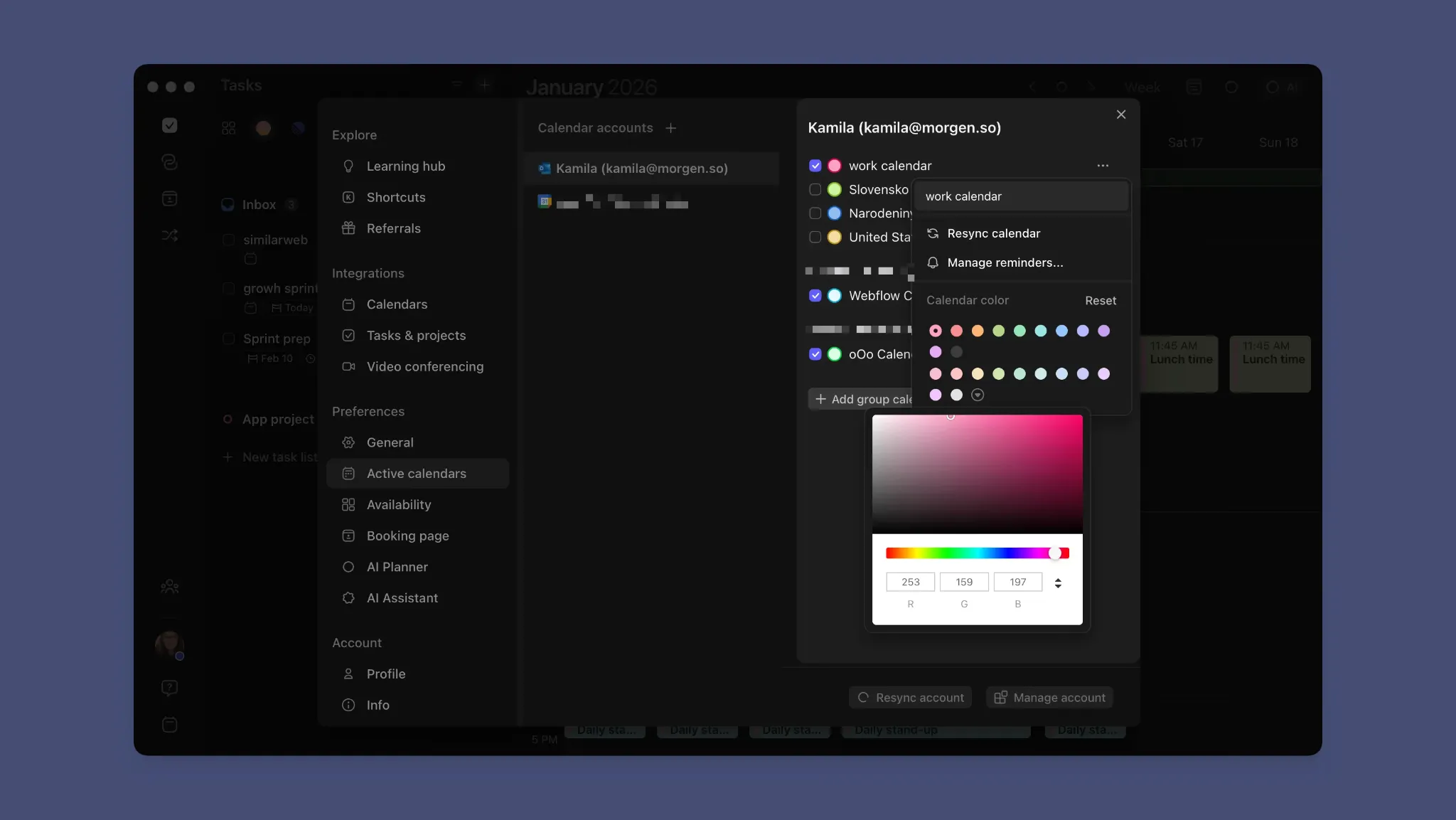
Once your calendars are connected, color-coding helps you read your week in seconds. With the full RGB picker, you're not limited to preset options. Here's how the color system works in practice:
- Calendar color as a left-side bar: Every scheduled block displays a vertical color bar on the left, showing which calendar it belongs to at a glance
- Outline color as a second layer: Add a separate outline color to signal planning context, such as client work, deep focus, or admin, independent of the calendar it lives in
- Instant week scan: No need to read event titles. Color distribution tells you how your time is split before you open a single block
Keep Personal Time Blocked Across Work Calendars

Morgen’s Calendar Propagation copies events from a source calendar to a destination calendar as private blockers. But you control exactly what crosses over:
- All events: Every event on the source calendar propagates as a private blocker
- Busy events only: Only events marked busy push across, keeping other time blocks from cluttering the destination
- Merge duplicate events: Prevent the same event from appearing twice across work and personal calendars
Automatically Sync Changes Across Every Connected Calendar
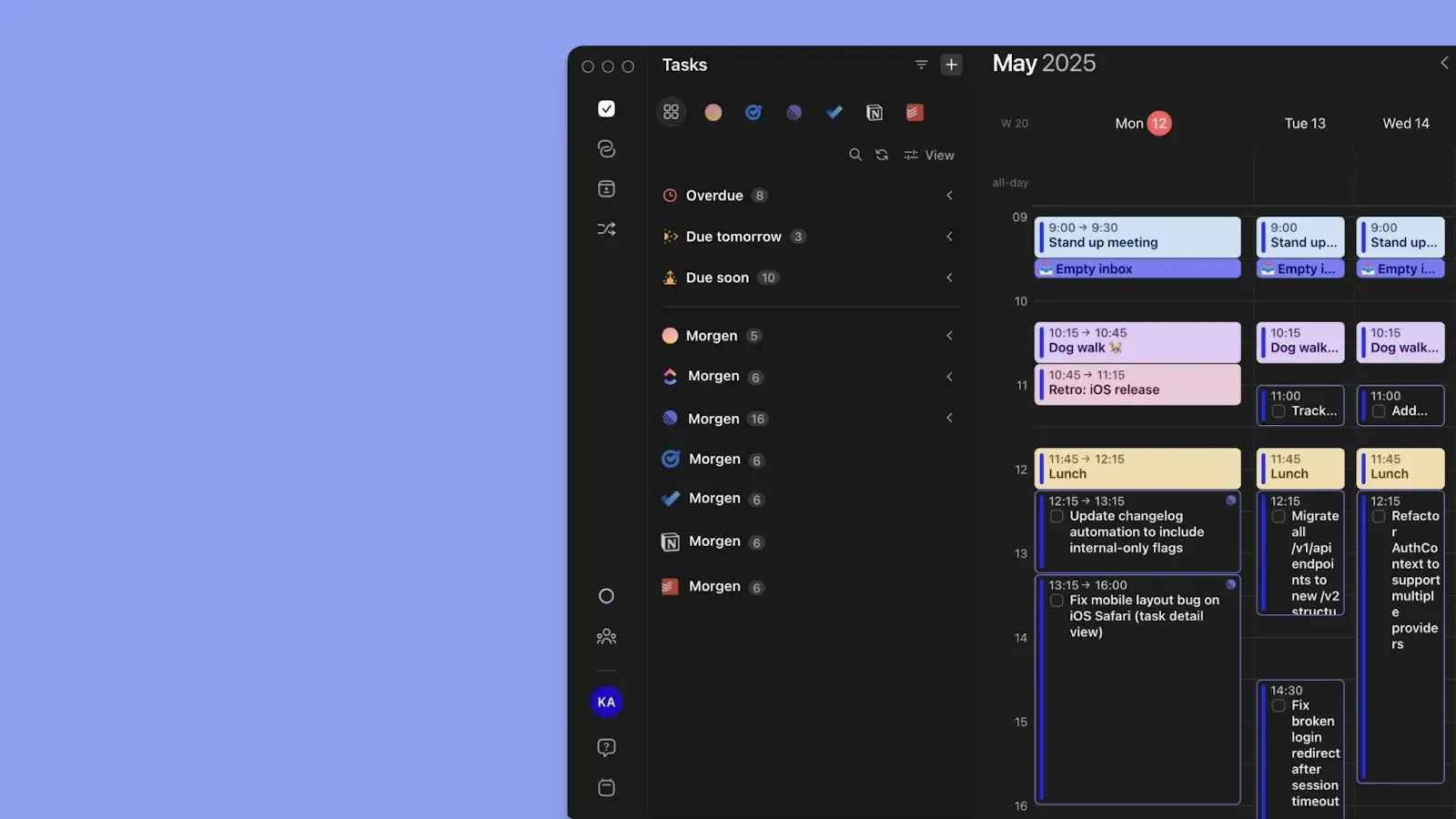
Any event, task, or routine you create in Morgen gets assigned to a connected calendar.
- Choose where new items go: Set a default calendar to automatic, a specific calendar, or the last one used
- Sync updates both ways instantly: Edit an event in Morgen and the change reflects in Google Calendar, iCloud, Fastmail, or Outlook Calendar. Update it at the source, and Morgen pulls the change through across every connected device
Switch Between Work and Personal Views With Calendar Sets
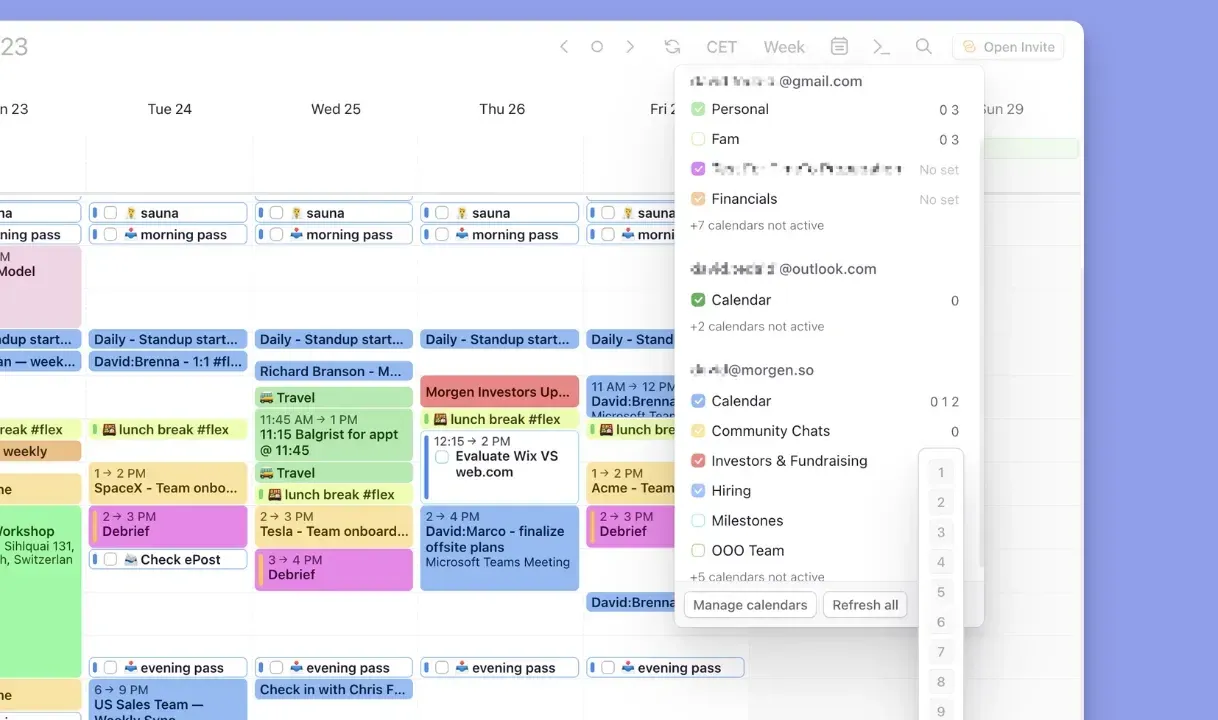
When you're managing multiple connected calendars, toggling between them manually gets old fast. Calendar Sets solve this with one keypress:
- Assign number keys 0 through 9 to specific calendars or calendar combinations
- Switch views instantly: For example, press 1 for work only, 2 for personal only, 3 for a shared family calendar, 4 for holidays, etc
- Build combinations: Group calendars you regularly view together into a single set and activate them with one tap
Expert Insights: Color-Coding for Life Balance
Productivity coach Martine Ellis manages every area of her life within a single calendar system in Morgen. Her approach to color-coding offers a practical framework for anyone merging work and personal calendars.
Start by Defining Your Life Zones
Martine splits her time into different zones: work projects, family time, health appointments, and personal development activities. Here’s how she manages the merged calendars:
- Create one calendar per life zone in Morgen
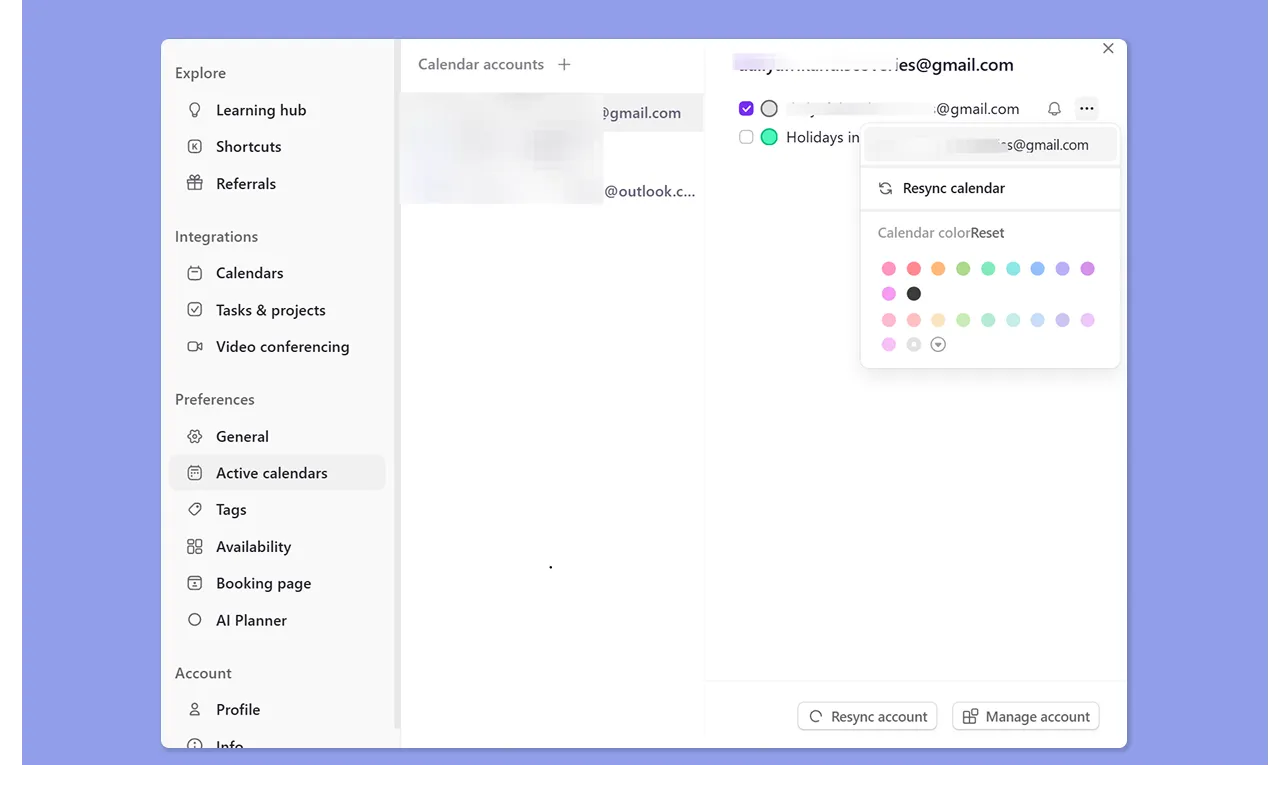
- Assign a unique color to each calendar in settings
- Glance at your week to see instantly how time is distributed across zones without reading individual events
Treat Color Dominance as an Early Warning Sign
When one color starts taking over her merged calendar view, Martine treats it as a signal to reassess. What to watch for:
- One color dominating for 2 to 3 consecutive weeks typically precedes exhaustion or declining performance in neglected areas
- A sudden drop in one color means a life zone is being crowded out
- Catching the imbalance early keeps corrections manageable before the impact compounds
How Morgen Makes Syncing Work and Personal Calendars Simple
Morgen sits on top of your existing calendars, bringing work and personal commitments into one view so you can plan from a single system.
Here is what to expect when you get started:
See Immediate Clarity
Within hours of setup, you have one view of every commitment (work, personal, and shared). No more switching apps to piece together your day.
Connect Existing Calendars in Minutes
Simply connect your existing calendars (Google, Outlook, iCloud, Fastmail, and others) to unify your view.
Test the Workflow Before Committing
Morgen works alongside your current calendar system without disrupting your workflow. You can explore the unified view, test scheduling features, and experience the reduced mental load before fully committing to the change.
Scale as Your Planning Needs Grow
Whether you're managing two calendars or ten, Morgen grows with your needs. Start simple with basic calendar merging, then gradually add features like AI task scheduling, workflow automation, and team collaboration as you see the benefits.
If managing multiple calendars is costing you time, focus, or personal commitments, consolidating them into one system is the best way to eliminate scheduling friction. Start with Morgen’s 14-day trial, and create a daily schedule that works.
Frequently Asked Questions
1. Can I keep my personal calendar private if I use Morgen with my team?
Yes. If you use Morgen with your team and have privileges to view one another's calendars, that access pertains only to your work calendars. The details on your personal calendar are only visible to you in Morgen.
2. How does Morgen avoid scheduling over my personal time?
Morgen's AI Planner considers your availability across all connected calendars. It only recommends time blocks that respect both personal and professional commitments.
3. What is calendar propagation?
Calendar propagation lets you automatically block events from one calendar to another. The mirrored events are blockers only and do not show the details of the events, keeping personal appointments private. (Unless you adjust the visibility of details using Nerd Mode customization.)
4. Why manage everything in one calendar system instead of keeping work and life separate?
Managing all commitments in a single system helps you identify overload early, reduce context switching, and make better-informed planning decisions.
5. How do I sync calendars across multiple devices?
Morgen is available on Windows, Mac, Linux, iOS, Android, and web. Once you connect your calendar accounts on desktop, changes sync automatically across every linked device, so the same merged view is available wherever you plan.
6. What’s the best way to handle public holidays across different calendars?
Most connected calendars bring regional holidays into Morgen automatically. Turn them on in your active calendars, assign each a unique color, and add them to a Calendar Set. For holidays your connected calendars don't cover, subscribe to additional regional feeds directly in Morgen.
7. Can I block off personal time without affecting my work calendar?
Yes. Use Calendar Propagation to mirror personal events into your work calendar as busy blockers. Colleagues see that the time is unavailable, but event details remain hidden.
8. What's the best way to organize work and a personal calendar?
Start with separate calendars for work, personal, and shared commitments, then assign each a distinct color. Use Calendar Sets to switch between focused views during the day and a combined view when planning the week.

.svg)
.webp)